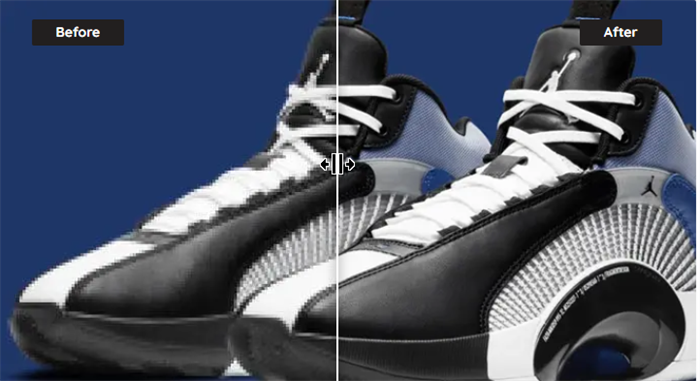
Want to increase the image size but the pixels get all messed up? Well, you are at the right place, my friend! This article will tell you all about how you can upscale your image without ruining the pixels. Not just that, you can do that all in the comfort of your house. HOW AMAZING!
Best Bigjpg Alternative-VanceAI Image Enlarger
We all need the best software to enhance our photos, the one which transforms the pictures without ruining the quality and charm.
If you are looking for software apart from bigjpg that won’t ruin your pictures, Vance AI Image Enlarger is the one to try. It provides all that you need. With the image upscaler providing the option to enlarge an image up to 800x, what else would a person need? TRY IT NOW!
Original illustration unavailable: Vance AI Image Enlarger
Bigjpg Review
All you need is the perfect software to upscale your image. Although users can utilize a variety of tools, however, in most situations, the original picture quality is not retained. Picture quality is most important to us when it comes to upscaling images.
Bigjpg is the best software for image upscaling by far! It carefully enlarges the image without ruining the pixels, giving you exactly what you want!
How to use Bigjpg?
How to Use Bigjpg online?
Step 1: Select any image you want to upscale. Upload it on the website.
Original illustration unavailable: Bigjpg Step1
Step 2: Choose settings according to your will. You can upscale your image up to 16 times! You can also choose noise reduction according to your preferences! It has ALL that you NEED!
Original illustration unavailable: Bigjpg Step2
Step 3: Your image will be ready within seconds. All you need to do is save it and you’re ready to rock that picture.
Original illustration unavailable: Bigjpg Step3
Also read: Best 10 Waifu2x Tools for Images and Videos
How to Use Bigjpg on Windows?
Step 1: Download the software by simply clicking on it on the Big jpg’s website.
Original illustration unavailable: Bigjpg On Windows Step1
Step 2: Open the software once downloaded and upload the picture you want to transform.
Original illustration unavailable: Bigjpg On Windows Step2
Step 3: Adjust the settings.
Original illustration unavailable: Bigjpg On Windows Step3
Step 4: Download the picture once the transformation is complete.
Original illustration unavailable: Bigjpg On Windows Step4
How to Use Bigjpg on Android?
Step 1: Download the Bigjpg app on your android device by searching “Bigjpg” on google play.
Original illustration unavailable: Bigjpg On Android Step1
Step 2: Simply select the file button and download the photo you want to transform.
Original illustration unavailable: Bigjpg On Android Step2
Step 3: Adjust all the settings according to your preferences.
Original illustration unavailable: Bigjpg On Android Step3
Step 4: Click on the ‘Download All’ button to download the amazingly transformed pictures and enjoy!
Original illustration unavailable: Bigjpg On Android Step4
How to Use Bigjpg on Mac?
Step 1: Install the app on the Mac device.
Original illustration unavailable: Bigjpg On Mac Step1
Step 2: Once downloaded, open the app, and click on “start”. Upload the image by clicking on the “Select Images” button. Once selected, the images will start loading.
Original illustration unavailable: Bigjpg On Mac Step2
Step 3: Choose settings according to your choice.
Original illustration unavailable: Bigjpg On Mac Step3
Step 4: Once the transformation is done, a “button” button will appear Click that to save the image.
Original illustration unavailable: Bigjpg On Mac Step4
Conclusion
In this age of photography, many of our images captured are tiny and of poor quality. Hence, using them directly is not a smart idea. Bigjpg allows you to expand photographs without altering them, so you can get the most out of them. However, this instrument isn’t without flaws. AI picture enlarger sometimes takes longer to process and misses some details, particularly when it comes to portraiture. Also read: Best 5 Let’s Enhance Alternatives